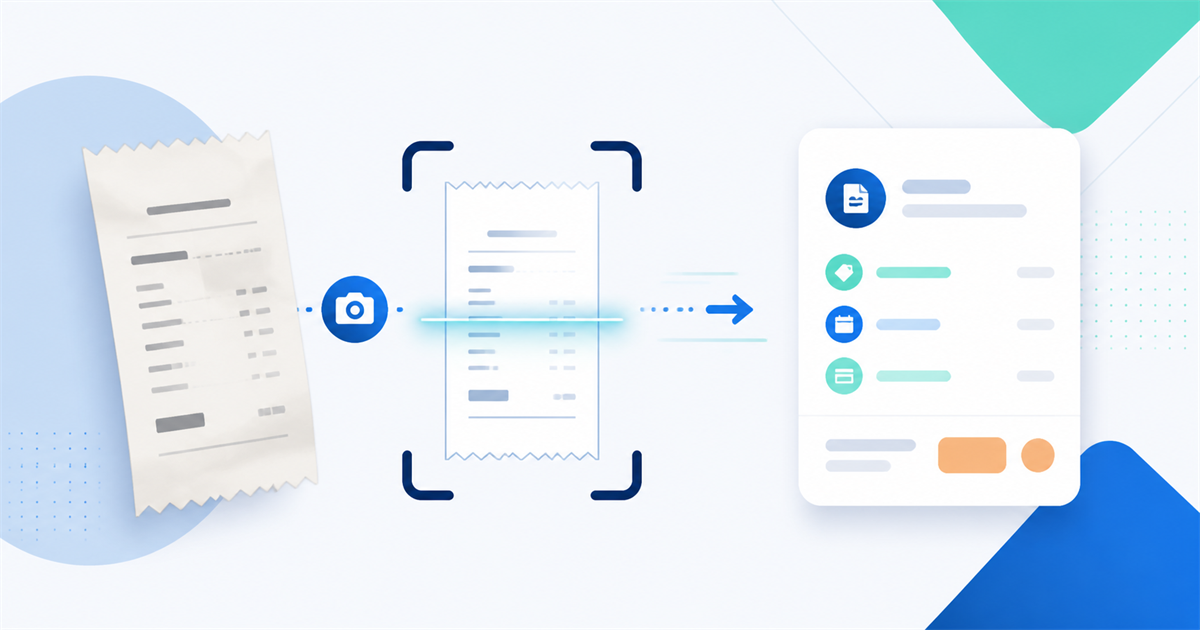
A receipt scanner uses an image of your receipt to identify information such as the merchant, date, total, currency, and line items where available. The useful result is not a perfect transcription; it is a draft expense record that you can inspect and correct.
1. Capture the receipt
Start with a clear photo of the receipt. FinAssist supports one to three photos, which is useful when a long receipt cannot fit in one frame. Keep the text in focus and include the full total and currency area whenever possible.
For long receipts: Use multiple photos rather than shrinking the document until the text becomes too small to read.
2. Let OCR and receipt logic extract fields
The image is processed to identify the parts of the document that are useful for an expense entry. Depending on the source, that can include the store or merchant, purchase date, totals, currency, and item lines. Receipt processing is country-aware for supported formats, including the United States, Malaysia, Jordan, and Uzbekistan, with best-effort handling for other receipts.
A receipt is treated as a single-currency document. If a receipt contains an unusual layout or an unclear currency, the extracted result needs closer review. The FinAssist receipt scanner page explains the current supported workflow and limitations.
3. Review before saving
The extracted data is shown as a reviewable entry rather than silently becoming a financial record. Check the merchant, date, currency, total, items, account, and category. You can edit the proposed details before choosing the account and completing the save.
This review step matters because faded, crumpled, blurry, or unusually formatted receipts can produce incomplete or incorrect extraction. Receipt scanning is currently available with the Pro plan; plan availability can change, so confirm the current plan details in the app.
What receipt scanning is good at
- Reducing manual typing for ordinary printed receipts.
- Handling a long receipt across one to three photos.
- Creating a draft that can be categorized and checked before saving.
What it cannot replace
OCR does not remove the need to compare the draft with the source document. It may struggle with poor image quality, unusual layouts, or information that is not visibly printed. For a practical review routine, read what to check after an app scans your receipt.
Turn your next receipt into a reviewable draft.
Install FinAssist on Android to try receipt scanning with a review step before saving.
